First time setup
1. Switch on
The radio program starts with the radio. On an sBitx the local GTK client opens on the radio’s screen, and a terminal beside it shows what the radio program says. If you close the GTK client, the zbitxre icon on the desktop opens it again.
2. Set your callsign
Tap SET. Select MYCALLSIGN, press, type your callsign on the keyboard that appears, and tap CLOSE. Do the same for MYGRID, your grid locator, such as MK68. The callsign is used by the CW macros, FT8 and the logbook, and by my.sbitx.net to know your radio.
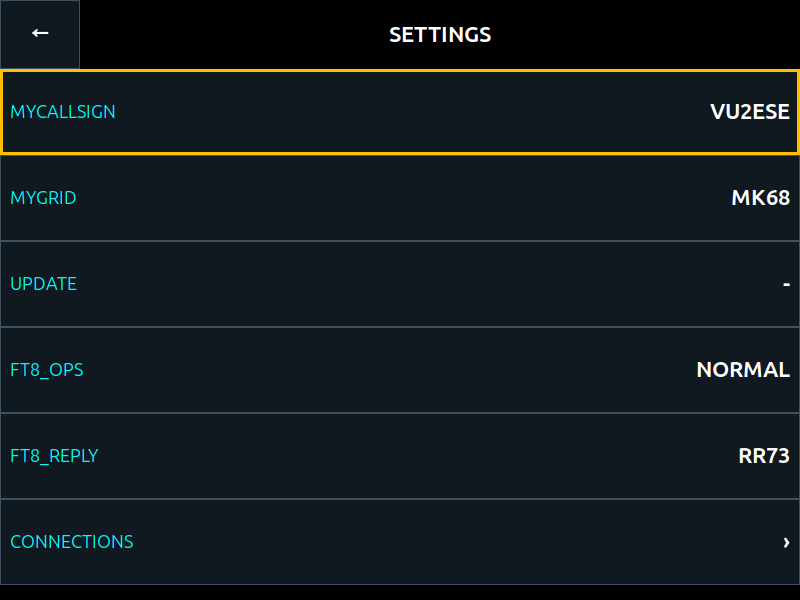
Tap the arrow at the top left to go back.
3. Join your WiFi
For FT8’s clock, updates and my.sbitx.net, the radio needs the internet. In SET, select WiFi and press. The radio lists the networks it hears, the strongest first; SCAN looks again. Tap yours, type its key, and tap JOIN on the front panel, or CLOSE in the GTK client. A network with no key is joined at once. About ten seconds later the radio says whether it joined, on the WiFi screen’s top line on the front panel and on the status line in the GTK client, and the WiFi row in SET then shows the network’s name.
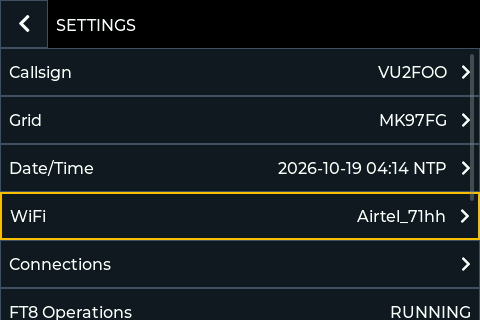
WiFi is set only at the radio itself: the GTK client shows the WIFI row only on the radio’s own screen, and the remote GTK client and the web page never offer it.
4. Choose a band and a mode
Tap a band button. The radio goes to where you last were on that band. Tapping the same band again steps through four places the band remembers, each a frequency and a mode.
Tap MODE, or select it and press, to step through the modes: USB, LSB, CW, CWR, AM, FT8, 2TONE, RADE1, RADE2 and VOIP.
5. Tune
Turn the tuning knob, or the mouse wheel over the frequency. STEP sets how far a notch goes: 10 Hz, 100 Hz, 500 Hz, 1 kHz or 10 kHz. A tap on the spectrum or the waterfall changes how wide a slice of the band they show.
6. Listen
VOL is the volume. If signals are too strong or too weak in the waterfall, change IF, the gain of the receiver’s input. AGC sets how fast the receiver’s gain follows the signal.
7. Transmit
With an antenna connected:
- voice: hold the microphone’s PTT, or tap TX; tap RX to go back to receive. MIC is the microphone’s gain, DRIVE the power;
- CW: use your key or paddle; see the CW section of the next chapter;
- FT8: the radio keys itself in its time slots; see the FT8 section.
The radio goes back to receive by itself after two minutes of continuous transmission.
8. Put it on line
To operate the radio from a browser or a phone, have it on the map, and talk over the internet, register at my.sbitx.net/register with the radio beside you. On line at my.sbitx.net shows how. It takes five minutes.