On line at my.sbitx.net
Put your radio on my.sbitx.net, and:
- operate it from anywhere, in a browser on any computer or phone;
- it is on the map, where others click on it and listen to you;
- have QSOs over the internet, VoIP, with other radios tuned where yours is.
The radio needs the internet, through your WiFi (on an sBitx, a network cable will do). Nothing has to be opened on your router: the radio makes the connection out to my.sbitx.net and keeps it.
Registering, and adding your radio
One form does both. Have the radio switched on beside you, and open my.sbitx.net/register.
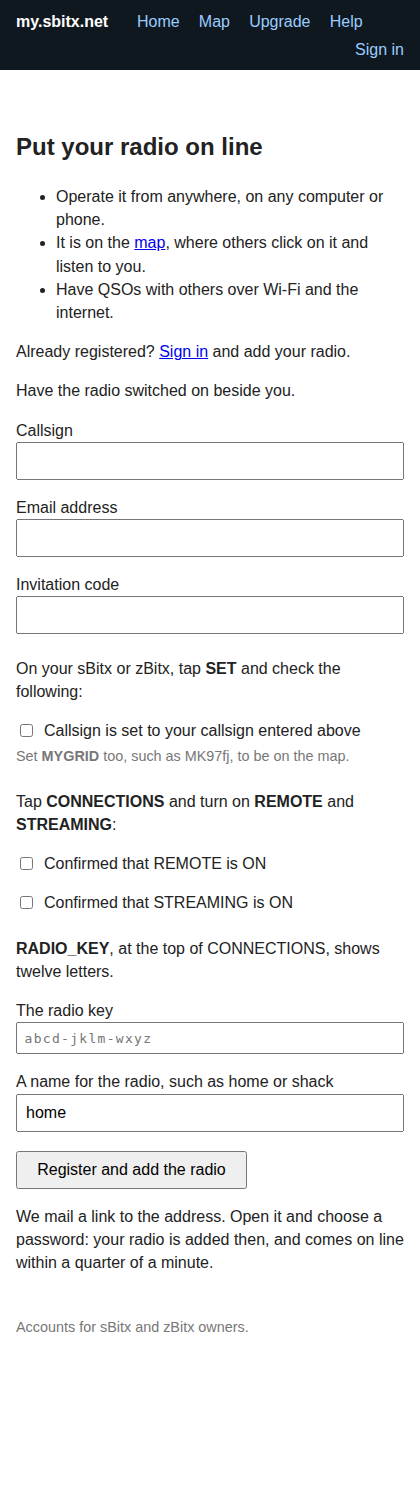
- Give your callsign and email address, and the invitation code while registration is by invitation.
- On the radio, tap SET: check MYCALLSIGN is your callsign, and set MYGRID too, to be placed on the map. Tick Callsign is set to your callsign entered above.
- Tap CONNECTIONS, and turn on REMOTE and STREAMING. Tick the two boxes that say so.
- RADIO_KEY, at the top of CONNECTIONS, shows twelve letters. Type them into The radio key. Give the radio a name, such as home or shack;
homeis filled in. - Press Register and add the radio. The button says “One moment…” for a second or two first, while the browser does a little work that keeps spammers out.
A link is mailed to you. Open it and choose a password. Your radio is added then, and you are signed in. Your page waits for the radio, looking again every five seconds, and within a quarter of a minute it is on line, as vu2ese-home, with Operate beside it.
Why the three boxes. The radio signs in with the callsign set on it and its key. A radio whose MYCALLSIGN is not the callsign you registered, or whose REMOTE is off, never comes on line; one with STREAMING off is not on the map.
If the radio does not come. After two minutes the page says what to check. On the radio, in SET then CONNECTIONS: REMOTE ON, and REMOTE_STATUS should say ONLINE. If it says ADD RADIO_KEY AT MY.SBITX.NET, the site does not have this radio’s key: add it, or type the key on the radio’s Manage page. If it says SET MYCALLSIGN FIRST, set it.
Already registered? Sign in, and use Add Radio: the same three boxes, the key and a name. An account has room for five radios.
“That radio key is already in use”. No two radios at my.sbitx.net may have the same key. If yours is refused, on the radio tap RADIO_KEY, choose NEW KEY, and type the new twelve letters. A key seen twice is a copied memory card, or a radio sold without being removed from its old owner’s account.
Selling or giving away a radio. On its Manage page, Remove it. The new owner makes a new key and adds it to their own account.
Making a new key. If a copy of the radio’s card has gone where it should not, tap RADIO_KEY, choose NEW KEY, and type the new letters on the radio’s Manage page. Anything signed in with the old key is let go within twenty seconds.
Operating from a browser or a phone
On your page at my.sbitx.net, press Operate beside the radio. The page has the frequency, the bands, the mode, the spectrum and waterfall, and the same list of controls as the radio, and it plays the radio’s sound. Speak with the PTT on the page, in the modes that are spoken into.
Install it as an app on a phone, from the Operate page:
- Android, Chrome: the menu, then Install app;
- iPhone, Safari: Share, then Add to Home Screen;
- a computer, Chrome or Edge: the install icon at the right of the address bar.
It opens full screen and on its side. Tick Remember me when you sign in on the phone, so that the app stays signed in.
CONNECTIONS cannot be changed from afar: REMOTE, STREAMING and the key are set at the radio only.
The GTK client on another computer
The same GTK client as on the sBitx’s screen runs on a Linux desktop.
- At home, on the same network as the radio:
zbitx_gui 192.168.1.82, with the radio’s address. - From anywhere, through my.sbitx.net:
zbitx_gui remote vu2ese-home, with your radio’s name. The first time it asks for the password you sign in to the website with. Changing that password signs it out everywhere, which is what to do if a laptop is lost.
The map
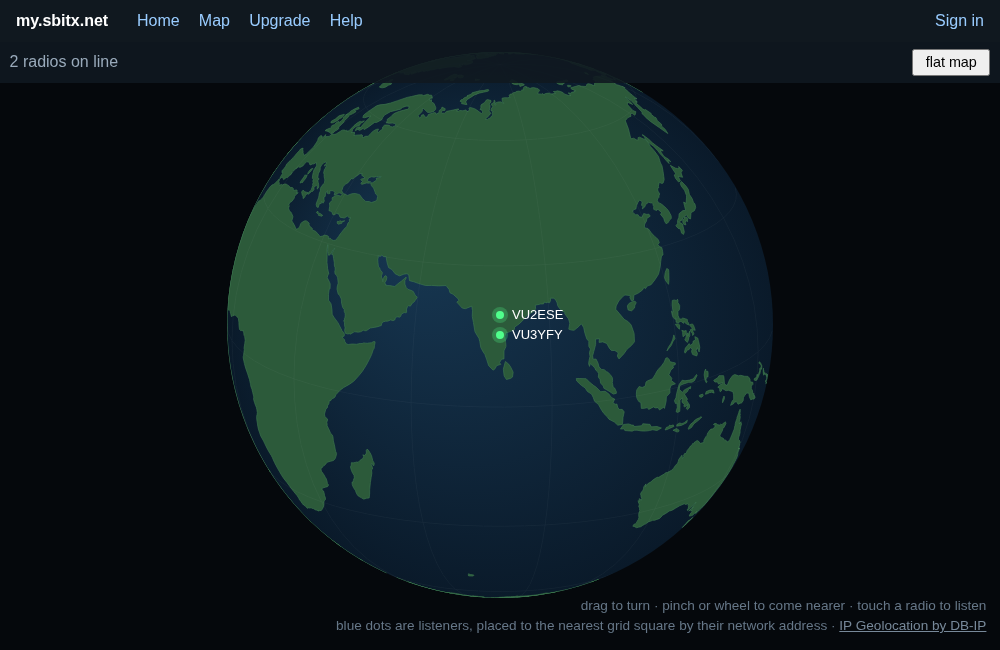
my.sbitx.net/map shows the radios that are on line and streaming. Anyone may use it, without an account: click a radio to listen to it, and see what it copies in FT8. flat map shows the world flat instead of as a globe. Your radio is placed by its MYGRID, and only its callsign and grid square are shown.